
How to Sign Up for Mobile Apps on PC Using an Android Emulator
An Android emulator lets you run compatible Android apps on your computer. To get started, install an emulator, sign in to Google Play, download the app, and follow its registration steps. If the app requires an SMS verification code, you also need access to a supported phone number that can receive it.
This can be useful when a service directs you to its mobile app instead of offering signup in a PC browser. You get a larger screen and a full keyboard while using the Android version of the app.
What is an Android emulator?
An Android emulator creates a virtual Android device on your Windows PC, Mac, or Linux computer. Think of it as running a phone-like Android environment inside a desktop window.
You can open apps, use Android settings, and return to a home screen. Your mouse handles most taps, and your keyboard makes typing easier. The emulator uses your computer's hardware and internet connection to run the Android software.
The virtual device does not automatically come with a real mobile number or cellular SMS service. Installing Telegram or another app inside it gives you access to the app; receiving a verification code remains a separate step.
When an emulator can help with account registration
Start by checking whether the service has an official web or desktop version that supports what you need. If it does, that is often the most direct route. An emulator becomes relevant when you need the Android app's interface on your computer.
Bumble on a computer
Bumble is now app-only. Its current notice directs users to the Android or iOS app rather than Bumble Web. That makes it a useful example of why someone might explore running a mobile app on a PC.
Hinge on a computer
Hinge's account instructions begin with downloading the Android or iOS app. Its published flow includes phone-number and email verification.
Telegram on a computer
Telegram is different because it already offers desktop apps and Telegram Web. You do not need an emulator simply to use an existing Telegram account on your PC. However, if you want to register a new Telegram account, you need to do so through the Telegram mobile app. In that case, an Android emulator on your PC can be useful for creating an account directly on your computer.
Android Emulator Options for Windows, Mac, and Linux
Choose an emulator that supports your operating system and processor. The following options include consumer app players and more technical tools.
Windows
- BlueStacks 5 - a consumer app player for Windows.
- NoxPlayer - another option for running Android apps and games.
- LDPlayer - a Windows app player focused on Android gaming.
- MEmu Play - a Windows Android app player.
- MuMuPlayer - offers Windows versions; choose the download for your processor.
- Genymotion Desktop - a more technical virtual-device tool.
- Android Studio Emulator - Google's emulator for Android development and testing.
Check each product's current Windows and hardware requirements before downloading, especially if your PC uses an ARM processor.
Mac and macOS
- BlueStacks Air - designed for Apple Silicon Macs, not Intel Macs.
- MuMuPlayer for Mac - requires an Apple Silicon Mac.
- NoxPlayer for Mac - an older Mac download is listed. Check compatibility carefully rather than assuming it supports your current macOS version or chip.
- Genymotion Desktop - lists support for Intel and Apple Silicon Macs, subject to its current macOS requirements.
- Android Studio Emulator - offers Mac setup options for Intel and Apple Silicon; use a compatible Android system image.
Choose the download that matches your Mac’s architecture (Intel or Apple silicon) and your macOS version.
Linux
- Genymotion Desktop - supports selected Linux distributions and hardware configurations.
- Android Studio Emulator - Google's development and testing option for Linux.
- Waydroid - runs Android in a Linux container rather than a conventional emulator. Setup depends on your distribution and desktop environment.
Which options are easier for beginners?
Android Studio Emulator and Genymotion are better suited to developers or users comfortable with technical setup. Waydroid also requires more Linux configuration. Consumer Android emulators such as BlueStacks, NoxPlayer, LDPlayer, MEmu Play, and MuMuPlayer are generally easier for everyday users and beginners. They typically come with Google Play pre-installed, making it easier to install apps, and they usually do not require any coding.
What you need before starting
- A computer that meets your emulator's current system requirements.
- Enough free storage for the emulator, its Android image, and your apps.
- A working internet connection and a Google account for the Google Play method below.
- Access to your Google account's sign-in verification method, if prompted.
- Access to a suitable SMS-receiving number if the app requires phone verification.
How to install an app and create an account
Step 1: Download and open your emulator
Download any emulator of your choice from its official website. Select the correct platform version, complete installation, and launch it. Wait until its Android home screen or app-player screen is ready.
Step 2: Sign in to Google Play
Open Google Play inside the emulator and sign in with your Google account. If you use Gmail, you already have a Google account. A Google account can also use a non-Gmail email address.
This sign-in lets you use the store to install apps. BlueStacks documents adding a Google account and confirms that non-Gmail Google accounts can be used.
Step 3: Install the official app
Search for the service in Google Play. Check the app name and publisher, select Install, and open it when the download finishes.
If the store says the app is incompatible or unavailable, resolve that first. The cause may be the virtual device's Android version, supported hardware, or store availability.
Step 4: Start the registration process
Select the app's Create account or Sign up option and follow the prompts. You can type into fields with your keyboard and click buttons as you would tap them on a phone.
Email confirmation, age requirements, photo checks, and phone verification are separate parts of the app's process. Use the service according to its rules, including any restrictions on emulator use.
Step 5: Complete phone verification if requested
When the app asks for a phone number, enter a supported number with the correct country code.
Request the code through the app, receive it in the SMS inbox, and enter it before the app’s timer expires. If you use WantSMS, that inbox is your WantSMS dashboard.
Step 6: Continue using the app
Once signup is complete, you can use the app's compatible features much as you would on a phone. Some features, especially those involving cameras, sensors, or device checks, may still require a physical device.
Before deleting an emulator or resetting its Android data, make sure you can sign in again, as resetting the virtual device can remove locally stored sessions.
How to receive SMS verification codes with WantSMS
WantSMS provides online numbers for receiving supported SMS verification messages. You can keep the emulator and your WantSMS dashboard open side by side: one runs the app, while the other displays the incoming code.
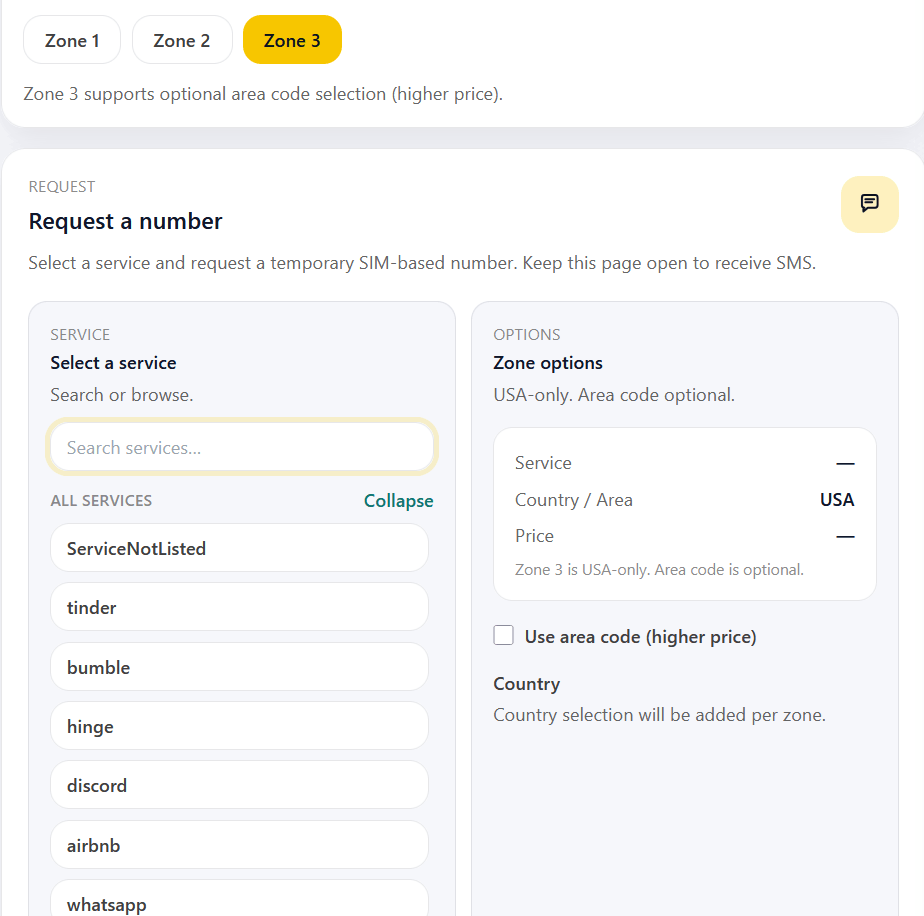
First, check the selected app, country, and current SMS verification number pricing. Install the app and confirm that you can reach its signup screen before requesting a number.
- Sign in to WantSMS and select the service you want to verify.
- Choose an available country accepted by the app and request a number.
- Enter that number in the app inside your emulator.
- Ask the app to send its verification SMS.
- Read the code in your WantSMS dashboard and enter it in the app.
For a more detailed walkthrough, see our guide to receiving SMS verification codes online. Availability and number acceptance depend on the service and country; an emulator does not change those requirements.
If you expect to need the same number again, compare temporary and rental phone numbers before choosing. The relevant difference is how long you retain access to incoming messages.
Troubleshooting app installation and verification
Identify where the process stops before changing anything. A store error, an app error, and a missing SMS need different checks.
| Problem | What to check first |
|---|---|
| Google Play is missing | Check whether your emulator or Android image includes the Play Store |
| Google sign-in fails | Confirm your credentials and complete Google's prompts; consult the emulator's sign-in help |
| The app is unavailable or incompatible | Check the Android version, device requirements, and store availability |
| The app opens but registration stops | Read the app's error; camera, location, or device checks may require a supported phone |
| The app rejects the number | Check the country code, number type, and selected service before requesting an SMS |
| No SMS appears | Check that you entered the correct number and country code and selected the right service in WantSMS. If the SMS still does not arrive, try another available number or zone. |
| The code is rejected | Use the newest code for that exact number and follow the app's expiry and resend instructions |
Frequently asked questions
Can I create an app account on a PC without a phone?
Sometimes. A compatible Android emulator can run the mobile signup interface, and an online number can receive supported SMS codes. However, the app may require a physical device or another verification method, so this is not possible for every service.
Do Android emulators require a Google account?
Not simply to run Android. You need a Google account for the Google Play installation method described here. Some emulator images do not include Google Play at all, so check the image before setup.
Can I install apps without Google Play?
Some emulators support installing Android application packages, or APKs. If you use that method, obtain the app from its official developer and check the developer's instructions. Apps that depend on Google services may still require those services to function.
Does an emulator provide a phone number?
No real SMS-receiving number is included simply because Android is running. Any simulated SMS feature used for development does not receive actual verification messages from third-party services.
Can I use the same number after deleting the emulator?
Deleting an emulator does not determine how long your number remains available. The number's access period is separate. However, deleting the emulator may remove your app session and make a fresh login necessary.
Choose an emulator that works with your computer, install your app, and explore WantSMS services and pricing when you need a number to receive an SMS verification code.